Rank Math can display Google Search Console and Analytics information
inside WordPress. The difficult part is rarely authorizing Google. It is
choosing the correct property, stream, and code-installation setting
when the Google account manages several websites.
Use this checklist to prevent one site from being connected to
another site’s reporting containers.
The same issue may be described as ‘Rank Math has no data,’ ‘my SEO
dashboard is connected to the wrong site,’ or ‘Analytics stopped showing
visitors after I connected WordPress.’ Verify the selected property,
stream, permissions, and tracking-code source before reconnecting
repeatedly.
Prepare the Google side
first
Before opening Rank Math, confirm that:
- The intended Search Console property is verified.
- The sitemap URL loads publicly.
- The correct GA4 property exists.
- The property contains a web stream for the site.
- You know whether analytics code is already installed.
- The Google account has sufficient access to each resource.
If a property or stream is missing, create it in the appropriate
Google product rather than reusing an unrelated one.
Connect the intended Google
account
In WordPress, open Rank Math’s Analytics settings and connect Google.
Read the authorization screen carefully. If Google presents unexpected
terms or access requests, stop and review them before accepting.
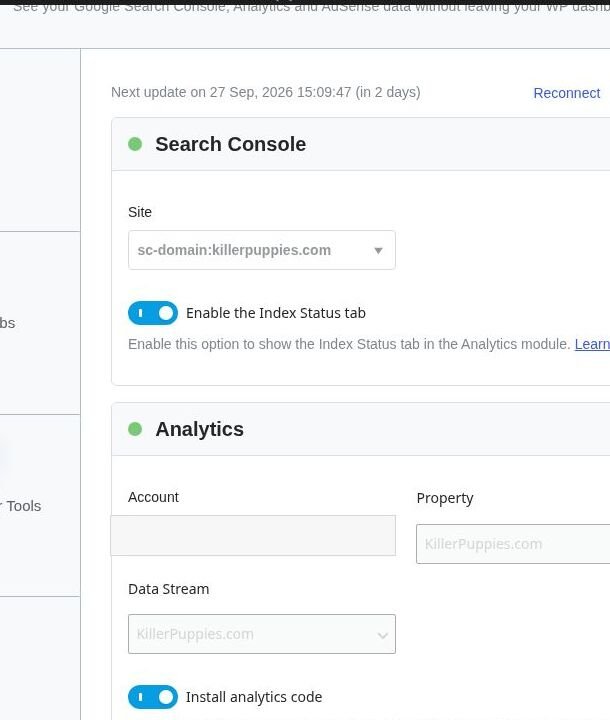
After authorization, Rank Math should populate selectors for Search
Console and Analytics. A successful connection does not mean the correct
resources have been selected.
Choose the correct
Search Console property
The list may contain both a URL-prefix property such as
https://example.com/ and a Domain property represented
differently. Select the property intentionally.
For a verified Domain property, Rank Math may show an entry with a
prefix identifying it as domain-scoped. Do not choose based only on
which entry appears first.
Choose the correct
Analytics hierarchy
Select in order:
- Analytics account
- GA4 property
- Web data stream
Verify that the property and stream names correspond to the same
website. Similar names are a common source of errors.
Decide who installs the
analytics code
Rank Math includes an option to install the analytics code. Enable it
only if no other theme, plugin, tag manager, or hosting integration is
already installing the same Google tag.
Duplicate installation can inflate page views and distort engagement
metrics. If another trusted method owns the tag, leave Rank Math’s
installation option disabled while still using the reporting
connection.
Consider logged-in
administrators
Excluding logged-in users can keep editing and testing activity out
of routine reports. Understand the scope of the setting: it may exclude
only certain users or depend on cookies and authentication state.
Use a private browser window for visitor-style testing so the
exclusion does not hide your verification traffic.
Save and test the connection
After saving:
- Use Rank Math’s connection test if available.
- Open the public website while logged out.
- Review GA4 Realtime for activity.
- Check the page source or tag diagnostics for one intended
measurement ID. - Confirm that Search Console remains connected to the intended
property. - Verify that the sitemap is submitted under that property.
Search Console data and historical Analytics reports may not appear
immediately. Do not repeatedly disconnect and reconnect solely because a
new property shows no past data.
Troubleshooting empty
reports
If Rank Math shows no information:
- Confirm that the relevant Rank Math module is enabled.
- Test the Google connection.
- Recheck the selected property and stream.
- Confirm that the public site carries the tag.
- Check whether administrator exclusion affected the test.
- Allow time for Google and WordPress reporting jobs to process
data.
Do not delete Analytics properties or Search Console properties as a
troubleshooting shortcut. Disconnecting Rank Math is different from
deleting the underlying Google resource.
Document the final
configuration
Record the selected Search Console property type, GA4 property name,
stream name, measurement ID, and the component responsible for
installing the tag. Keep this information private but accessible to
future administrators.
The goal is not simply to make the status indicator turn green. The
goal is to know that the correct website sends data to the correct
reporting property exactly once.
Use a post-connection
evidence record
Save a private configuration note that identifies the selected
property type, property name, stream name, tag owner, test date, and
successful verification method. Do not include passwords, authorization
tokens, or complete account identifiers.
This record makes future troubleshooting faster and prevents another
administrator from enabling a second tracking method because the
existing implementation was undocumented.
Frequently asked questions
Should I
reconnect whenever Rank Math shows no data?
No. First test the connection, verify the selections, and allow
processing time. Repeated reconnection can obscure the original issue
without producing historical data.
Can
Rank Math install Analytics and still show Search Console data?
Yes, but those are separate decisions. The Google reporting
connection can exist regardless of whether Rank Math installs the
analytics code.
What if two
properties have nearly identical names?
Check the canonical website URL and associated web stream. Rename
resources clearly in Google only when you are certain they belong to the
site; never alter an unrelated property to make the selector easier.
Related guides
- GA4 Property and Web Data Stream Explained
- How to Verify a Domain in Google Search Console
Visual walkthrough