A broken WordPress site creates pressure to start clicking
immediately. That instinct often makes recovery harder. The safest
response is to preserve evidence, identify the smallest likely cause,
and change one thing at a time.
This WordPress site recovery checklist is designed for common
failures after a plugin update, theme edit, configuration change, or
hosting adjustment. It does not replace a qualified administrator when a
site handles sensitive information or significant revenue, but it
provides a disciplined starting point.
People often describe the same situation in everyday language: ‘my
WordPress site disappeared,’ ‘the update broke my website,’ or ‘I can’t
get into WordPress anymore.’ Those phrases can point to different
causes, so identify the exact symptom before choosing a fix.
1. Define what “broken” means
Test the site in a private browser window and write down the exact
symptom:
- The entire site is unreachable.
- The front end works, but
/wp-admin/does not. - One page or feature fails.
- The layout is unstyled or incomplete.
- Visitors see a server error, blank screen, redirect loop, or
maintenance message. - The problem appears only on mobile or only while logged in.
Take a screenshot and copy the visible error text. Record the
approximate time the failure began. These details help distinguish a
WordPress problem from DNS, SSL, hosting, caching, or browser
behavior.
2. Stop making unrelated
changes
Do not update five more plugins because one update failed. Do not
change DNS while troubleshooting a page-builder issue. Do not delete a
plugin simply because deactivating it might help.
List the actions performed immediately before the failure. The last
change is not always the cause, but it is the best first hypothesis.
3. Confirm whether
hosting is available
Check the hosting provider’s status page and control panel. If file
management, database tools, and server status are available, the problem
may be limited to WordPress. If the hosting account itself is
unavailable, preserve the error information and contact the host before
editing the site.
You can also test a static file or another site on the same hosting
account, if one exists. Avoid changing DNS simply to test availability;
DNS changes can create a second problem with a much longer recovery
window.
4. Create a recovery
point if possible
If the control panel remains accessible, make a fresh backup of the
files and database before attempting repairs. A backup of the currently
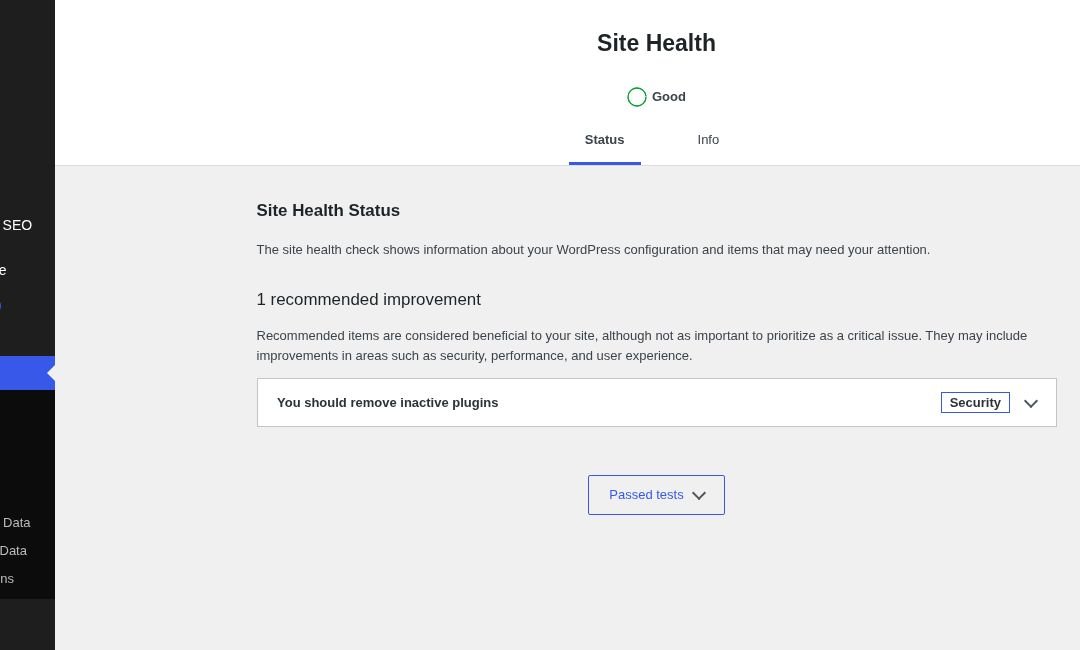
broken state can still be useful because it preserves logs,
configuration, and content created since the last successful backup.
Never assume a backup contains both files and the database. WordPress
content is divided between them. Media, themes, and plugins are stored
in files; posts, settings, user records, and many plugin configurations
are stored in the database.
5. Test the most likely
plugin conflict
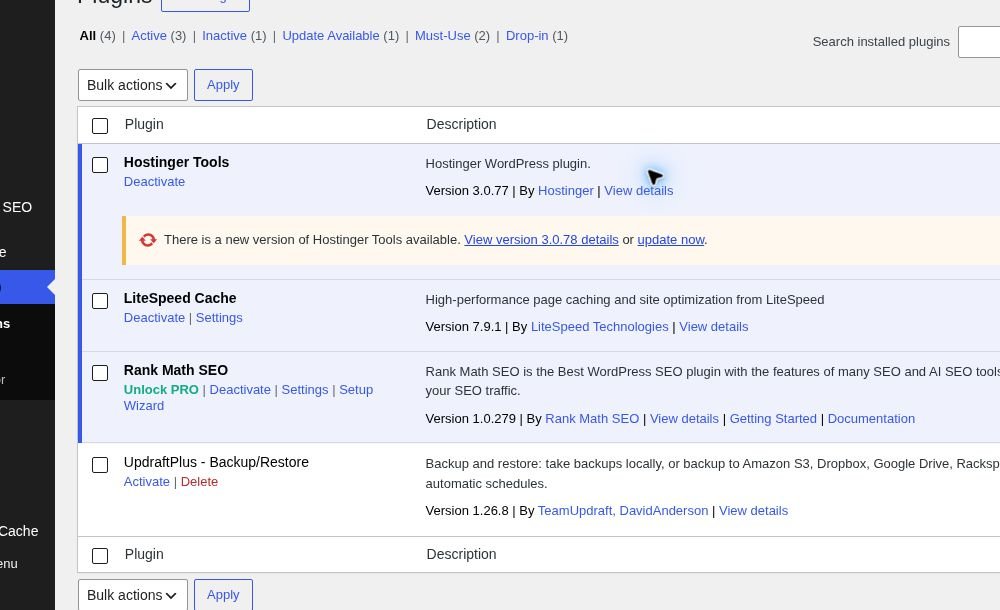
If a plugin was just activated or updated, deactivate only that
plugin. Use the WordPress dashboard when it is available. When it is
not, an experienced administrator can temporarily rename the plugin’s
folder through the hosting file manager or SFTP. Rename rather than
delete so the action remains reversible.
If the site returns, confirm the diagnosis before replacing or
updating anything else. Record the plugin name and version, then check
its documentation and support history.
6. Test the active theme
carefully
A PHP error or malformed theme customization can break the site. If
the problem began after a theme edit, restore the edited file from a
known-good copy. If a child theme is in use, preserve its customizations
before switching themes.
Avoid editing the WordPress core or a parent theme directly. Updates
can overwrite those changes, and direct edits make troubleshooting much
less predictable.
7. Examine error logs
Hosting error logs often reveal the specific PHP file, function, or
resource limit involved. Look for entries matching the time of the
failure. A log that names a plugin does not automatically prove that
plugin is defective; it could be exposing a compatibility issue
elsewhere. Treat the log as evidence, not a verdict.
Do not display detailed PHP errors publicly on a production site.
Debug information can reveal paths, configuration details, or other
sensitive information.
8. Restore only what is
necessary
If a rollback is required, choose the smallest valid restore point.
Restoring an entire site may overwrite new orders, comments, form
submissions, or content. When possible, restore the affected component
or coordinate a full restoration with a database-content plan.
After restoration, verify:
- The homepage and several internal pages load.
- WordPress administration works.
- Forms submit successfully.
- Navigation works on desktop and mobile.
- HTTPS is valid.
- Scheduled tasks and analytics remain connected.
9. Prevent a repeat
Document the cause, the successful repair, and the backup used.
Establish a routine that includes pre-change backups, a staging
environment for risky work, limited administrator accounts, and a
maintenance log.
The fastest recovery is usually not a clever trick. It is a sequence:
observe, preserve, isolate, test, verify, and document.
When to stop
troubleshooting yourself
Stop and escalate when the site processes payments, stores sensitive
information, shows signs of compromise, or lacks a verified backup.
Repeated login failures, unfamiliar administrator accounts, changed
payment destinations, injected links, and altered server files can
indicate a security incident rather than an ordinary plugin conflict.
Preserve logs and avoid destroying evidence.
If restoring the site could overwrite orders, registrations, or form
submissions, coordinate the database recovery before pressing Restore.
The cost of qualified help is usually lower than the cost of an
improvised full-site rollback.
Frequently asked questions
Should I clear every cache
first?
Refresh the page and test a private window first. Purging all caches
can be appropriate after a confirmed display or deployment issue, but it
should not be the automatic response to database errors, DNS failures,
or PHP crashes.
Is
deactivating a plugin the same as deleting it?
No. Deactivation stops normal plugin execution while preserving its
files and usually its stored settings. Deletion removes files and may
trigger a cleanup routine. Start with the reversible action.
Should I
restore the newest backup automatically?
Not without checking it. The newest backup may already contain the
failure or compromise. Match the restore point to the incident timeline
and preserve newer business data where possible.
Related guides
- How
to Back Up a WordPress Website Before Making Changes - A
Practical WordPress Pre-Publish QA Checklist - DNS
Changes Without Breaking Your Website or Email
Visual walkthrough