You save a change in WordPress, open the public page, and see the old version. You save it again. Still nothing. Before rebuilding the page or changing themes, work out which version of the page your browser is actually receiving.
This guide turns a frustrating website-development problem into a repeatable check: confirm the edit was saved to the right place, compare the visitor view, then clear the cache layer that holds the outdated content.
First confirm the change exists
Open the exact post, page, template, or reusable element you edited. Confirm that the new wording or setting is still present after reopening it. Finish the editor’s save or update flow and check its confirmation. A preview can show work that has not reached the public page.
Then compare the public address with the item you edited. A static homepage, a posts index, and a page with a similar title can be different things. Headers and footers may belong to a template rather than the page body. If you changed the wrong item, clearing caches will only serve that same wrong item faster.
Compare the logged-out visitor view
Open the public page in a private browsing window and, if possible, a second browser or phone. Record exactly what differs: the wording, the layout, an image, or a button. A private window helps separate your normal browser’s stored state, but it can still receive an old page from a server or CDN.
If the editor shows new text while visitors see old text, page caching is a useful lead. If visitors see the new text but old colors, spacing, or positioning, investigate stylesheets and optimization output. These patterns guide the next check; they do not prove the cause by themselves.
Clear the relevant WordPress page cache
A page cache stores a ready-made response so WordPress does less work on each visit. If an outdated response remains available, visitors can receive it after the underlying content changes.
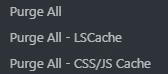
Use your cache plugin’s page-specific purge first when available. With LiteSpeed Cache, the Toolbox purge controls include Purge All – LSCache for the WordPress installation’s page cache. Choose the control that matches the issue rather than resetting the plugin’s configuration. LiteSpeed’s Toolbox documentation explains the scope of each purge option.
Reload the public page after the purge. Look for the exact sentence or element you changed. Repeatedly purging without comparing the result makes it harder to identify which action worked.
If the layout is stale, check generated CSS and JavaScript
A stylesheet can stay outdated even when the page content is current. Optimization tools may produce their own combined or minified assets. LiteSpeed provides a separate CSS/JS purge control for those generated files. That is a different job from purging cached page responses.
Before changing optimization settings, record their current values. If you need to isolate a conflict, change one setting at a time on staging where possible, regenerate the affected files, and compare the visitor view. Restore settings that do not resolve the issue. Turning off several features together can hide the real cause and create a new problem.
Check hosting and CDN caches separately
Your host or content delivery network may store another copy. Identify which services are actually active before looking for purge controls. If a CDN caches the affected page or asset, invalidate that item through the provider’s supported controls. A browser refresh does not clear a remote cache.
In LiteSpeed’s menu, a Cloudflare purge is available only with the relevant integration enabled. Its presence in an instructional image does not mean that every installation uses Cloudflare. Avoid disabling an entire CDN as a routine first step; use its documented purge or diagnostic process instead.
Use browser tools when the source is unclear
Chrome’s Network panel can show requests for the page, stylesheet, and images. Open it before reloading, inspect the affected request, and compare the response with the expected change. Its Disable cache option helps test the browser cache while DevTools is open; it does not disable the host’s cache or a CDN. See Chrome’s Network panel guide.
If a replacement image keeps appearing old, check that the page points to the intended file. For revised assets, a new descriptive filename can make versions easier to distinguish. Updating the file also requires updating the image reference used by the page.
Before you call the fix complete
- Confirm the saved edit appears on the correct public URL.
- Check the page while logged out on desktop and mobile.
- Verify navigation, images, buttons, and forms still work.
- Restore temporary debugging settings and record what resolved the issue.
- If the same problem keeps returning, investigate purge rules or ask the cache provider for help.
The useful result is a visitor seeing the intended page reliably. A save confirmation, a successful purge message, or an updated preview alone does not establish that result.
Common questions
Does private browsing bypass a CDN?
No. It separates much of the browser’s local state, but the request can still pass through the same server and CDN caches.
Should I clear every cache after every edit?
Use normal automatic invalidation and targeted purges where possible. If routine edits repeatedly require broad manual purges, investigate the configuration.
Related guide: A practical WordPress pre-publish QA checklist.